Managing Attributes
Jump to navigation
Jump to search
This manual explains how to manage attributes, attribute values, and attribute templates for products.
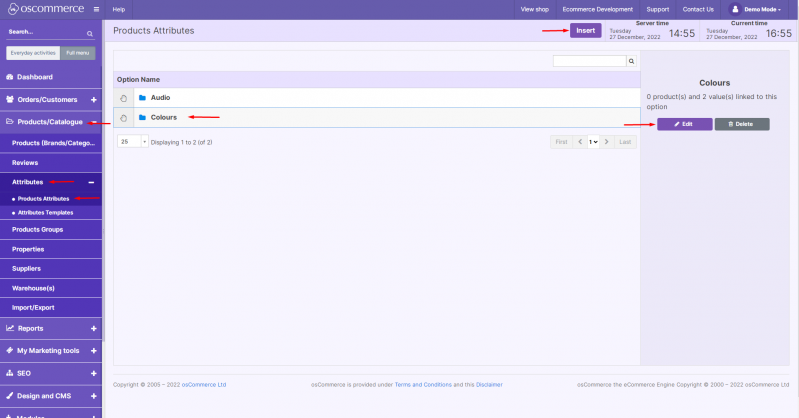
1) Accessing Product Attributes
- Go to the admin area of your website.
- Click Products/Catalogue → Attributes → Products Attributes.
- From here, you can:
- Insert a new attribute
- Edit an existing attribute
- Delete an attribute if it is no longer needed
2) Adding or Editing an Attribute
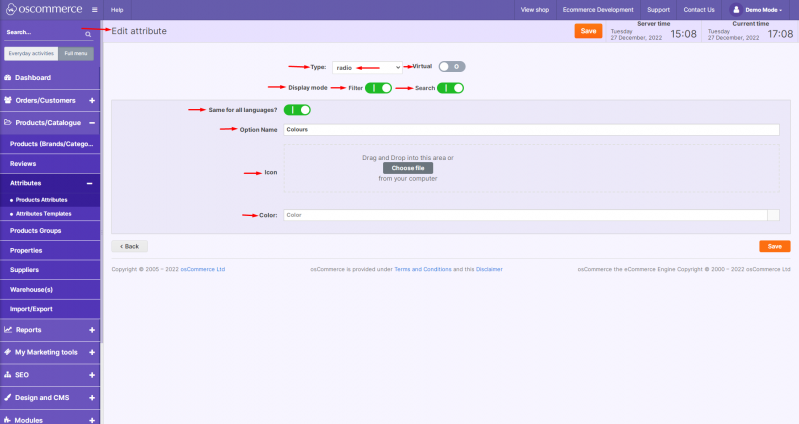
When adding or editing an attribute, you can configure the following settings:
- Attribute Type: Choose Multi-select or Single-select (radio button).
- Mark as Virtual: Enable if the product is virtual/downloadable.
- Display Mode: Choose whether the attribute appears in product filters and search.
- Attribute Name: Set one common name for all languages, or individual names for each language.
- Icon and Color: Upload an icon and/or choose a color to visually represent the attribute (optional).
Click Save when finished.
3) Managing Attribute Values
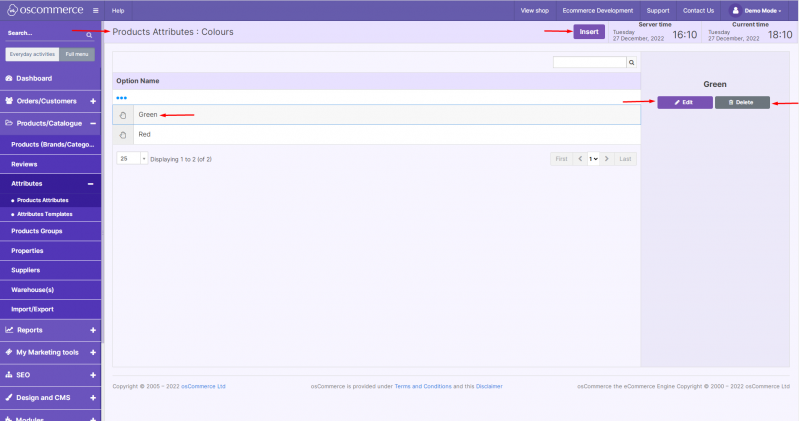
- In the Products Attributes tab, double-click the attribute you want to manage.
- You can:
- Insert a new attribute value
- Edit an existing value
- Delete a value
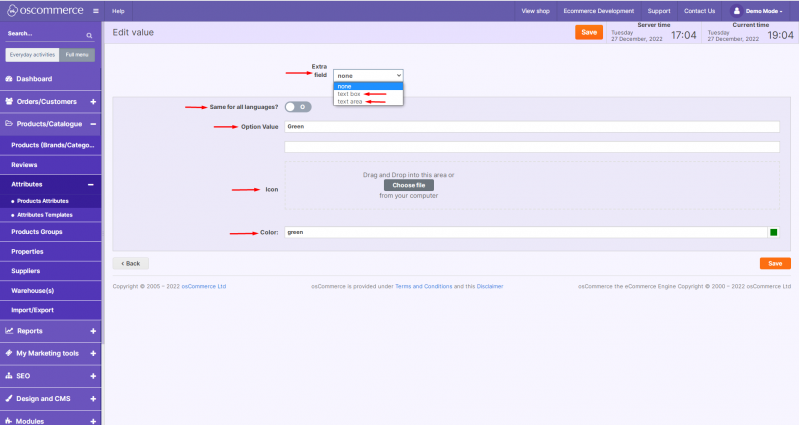
When adding or editing an attribute value, you can configure:
- Extra Field Type: Choose between text box or text area (optional).
- Attribute Value Name: Apply one common name or set individual translations.
- Icon and Color: Upload an icon or set a color if needed.
Click Save to confirm changes.
4) Working with Attribute Templates
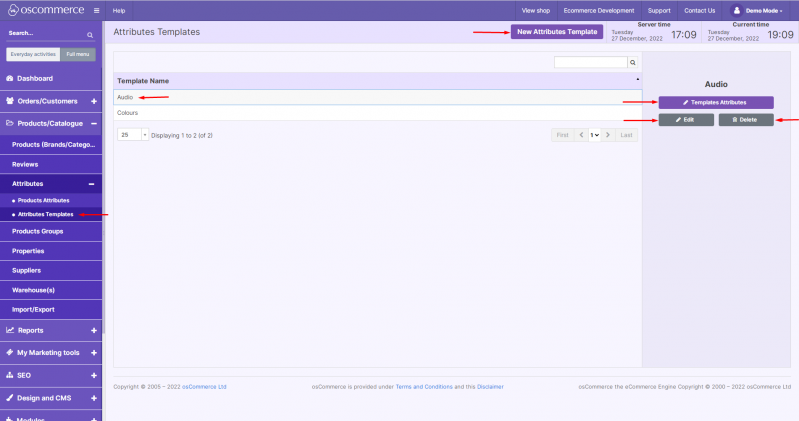
- Go to Products/Catalogue → Attributes → Attributes Templates.
- You can:
- Add a new template
- Edit an existing template
- Delete a template
- Assign attributes to a template
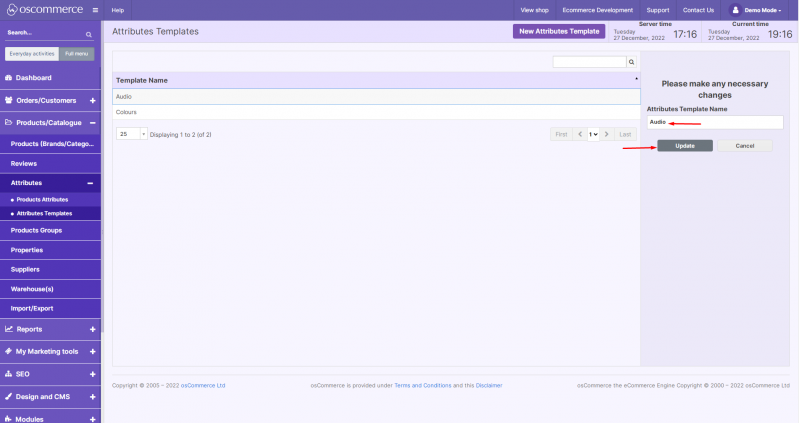
3. When adding or editing a template, set the Template Name.
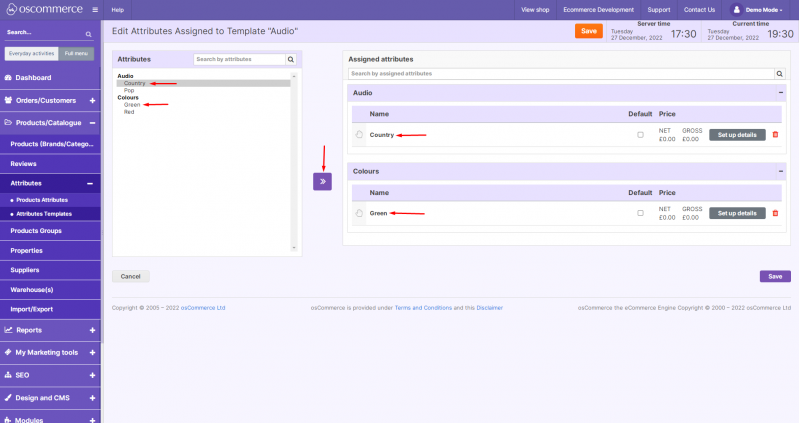
4. To assign attributes:
- Click Templates Attributes.
- Select attribute value(s) from the Attributes list.
- Use the >> button to move the selected values to Assigned Attributes.
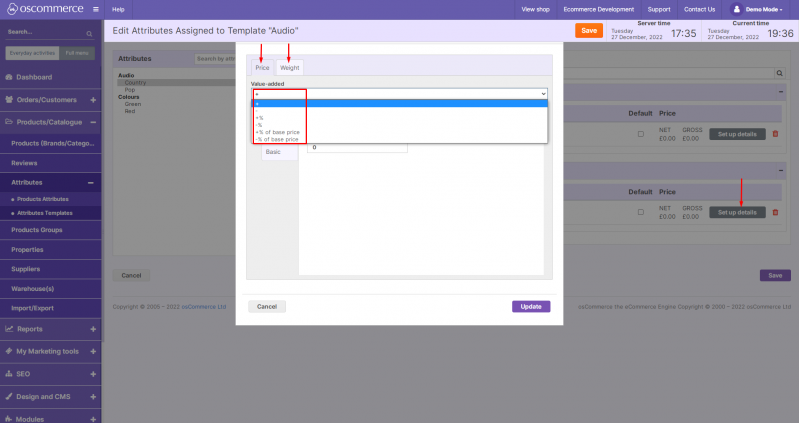
5) Configuring Attribute Price and Weight Effects
For each assigned attribute value, you can specify:
- Effect on Price:
- Add / Subtract a fixed value
- Add / Subtract a percentage
- Apply a percentage discount off the base price
- Effect on Weight:
- Add / Subtract a weight value
- Add / Subtract a weight percentage
6) Configuring Virtual Products (If Applicable)
If the product is virtual, you can:
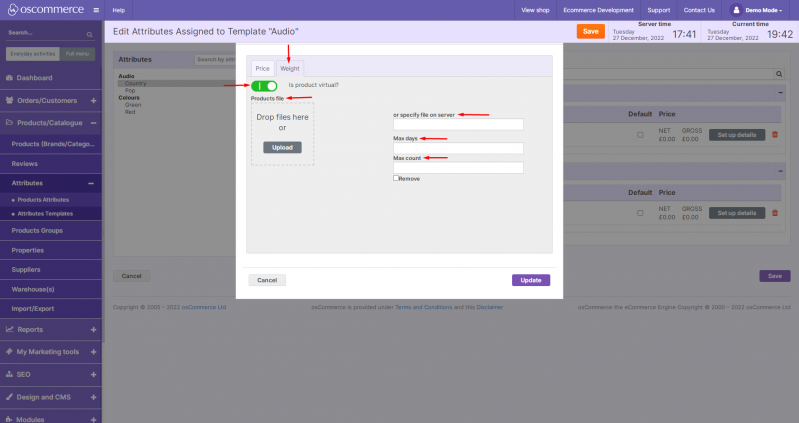
- Upload or link a downloadable file
- Set the maximum number of available days
- Set the maximum number of allowed downloads