Managing Export and Import
Jump to navigation
Jump to search
This manual explains how to manage product and catalog data using the Import/Export tools in the admin area.
1) Accessing the Import/Export Tools
- Go to the admin area of your website.
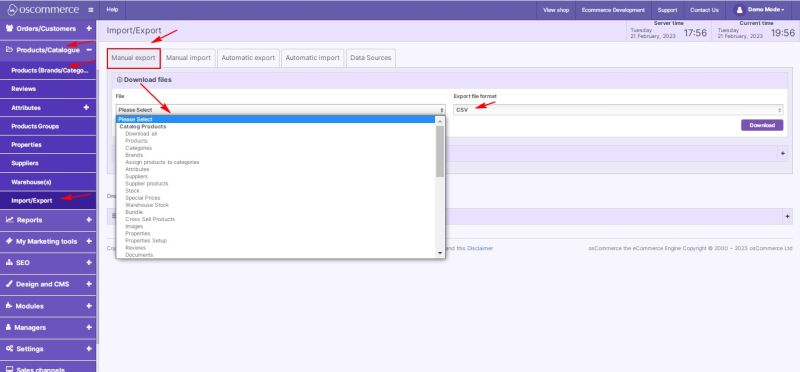
- Click Products/Catalogue → Import/Export → Manual export.
2) Exporting Data
- Under the Manual export tab, open the File dropdown menu and select what you want to export (e.g., Products, Categories, Brands, etc.).
- Select the Export file format (for example, CSV).
- (Optional) Select a Category and Product from the dropdown lists to narrow export results.
- (Optional) Enable Price with tax if you want prices exported including VAT.
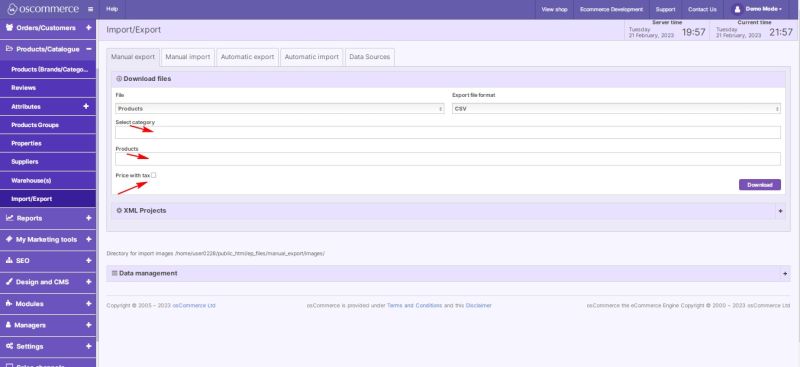
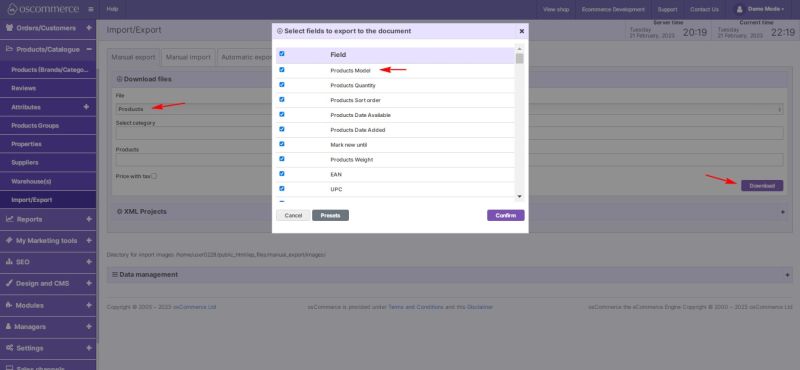
5. Click Download.
6. A pop-up window will appear.
Note: The Products Model column (or its equivalent) may have different names depending on the type of file:
| File Type | Identifier Field / Column Name |
|---|---|
| Products | Products Model |
| Categories | KEY_FIELD |
| Brands | KEY_FIELD |
| Assign products to categories | Products Model |
| Attributes | Products Model |
| Inventory | KEY |
| Supplier | Suppliers name |
| Stock | STOCK_KEY |
| Bundle | Products Model and Child Products Model |
| Images | Products Model |
| Properties | Products Model |
| Properties Setup | EXISTING_REF |
3) Importing Data
- Click the Manual import tab.
- From the dropdown, select the file type you want to import.
- You can:
- Upload a new file (format is auto-detected based on Manual Export structure),
- Re-run previously uploaded files,
- Or browse and upload a new file manually.
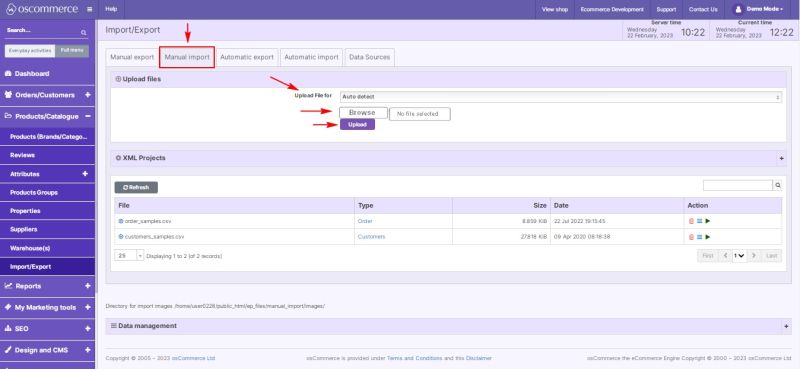
4. Once the uploaded file appears in the list, you can:
- Delete the file,
- Select which fields to replace,
- Apply the changes to your website,
- View the import report using the action icons.
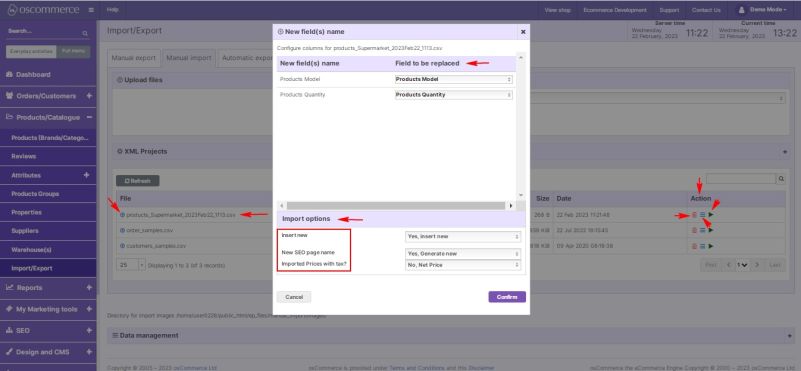
4) Required File Structure Rules
- The Products Model column (or its equivalent listed above) is mandatory. This field is used to find and update existing records. If missing, duplicates will be created.
- All other columns are optional:
- If a column exists and contains data → the data will be updated.
- If a column is missing → the original data will remain unchanged.
5) Special Requirements for Certain Data Types
When importing data for:
- Assign products to categories
- Attributes
- Images
- Properties
The product-related rows must be grouped (sorted) together.
If the product rows are not grouped, the system will treat missing rows as deletions and remove data.
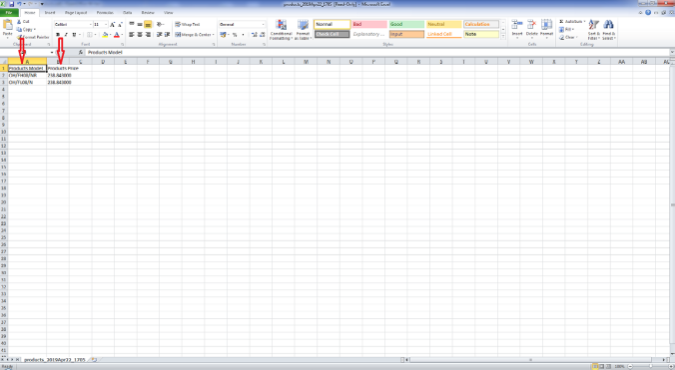
6) Example for Updating Prices
A minimal price update file may contain only two columns, for example: