Managing Menus
Jump to navigation
Jump to search
This manual explains how to create and manage menus in your website’s admin area. You will learn how to add menu items, arrange their order, assign categories, brands, or pages, and configure additional settings for each item.
Begin with the video to get an introduction.
Consult the manual for complete details.
1) Access Menus
- Log in to your website’s Admin area.
- Go to Design → CMS → Menus.
2) Create and Manage Menus
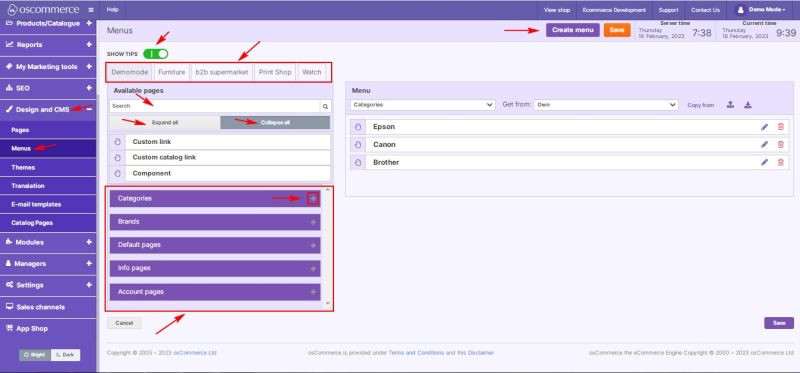
- To create a new menu, click Add Menu.
- To enable or disable Show Tips, use the switch.
- To select a front end, click on the corresponding tab.
3) Work with Available Pages
In the Available pages section, you can:
- Use the Search tool.
- Click Expand all or Collapse all.
- View Pages, Categories, Brands, and sub-levels (click the + icon to expand subcategories or sub-subcategories).
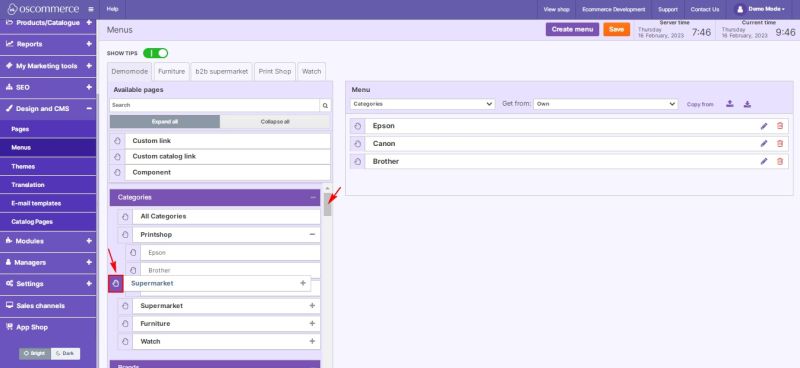
- Scroll up and down with the scroller.
- Drag items with the hand tool to move them up or down.
4) Menu Section Options
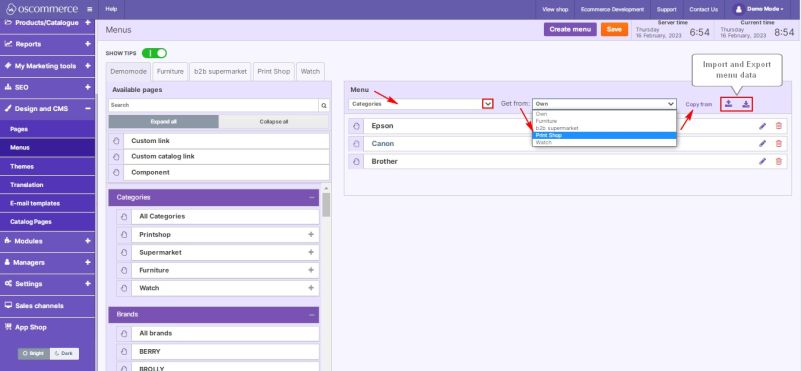
- Select menus from the drop-down list.
- Copy a menu from another sales channel.
- Import/Export menu data.
5) Edit Menu Structure
Reorder items by dragging and dropping:
- Arrange items in the right sequence.
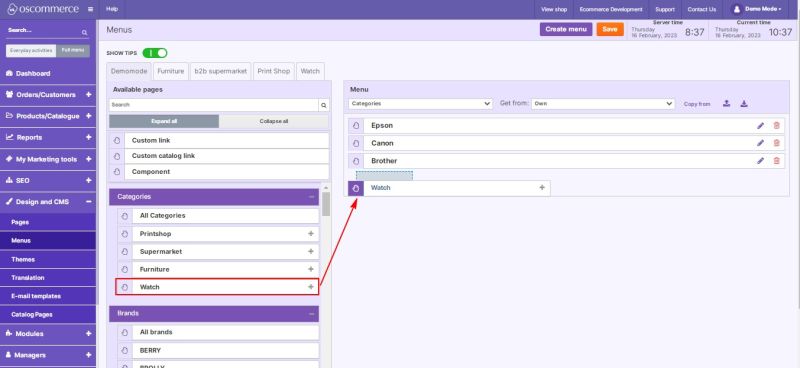
- Set up parent/child relationships.
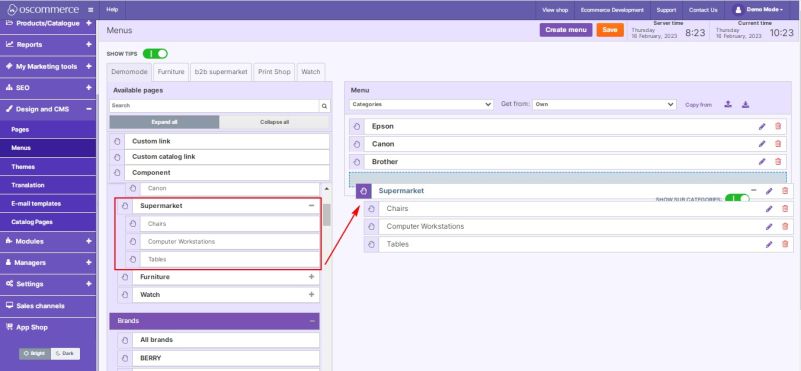
6) Add Menu Items
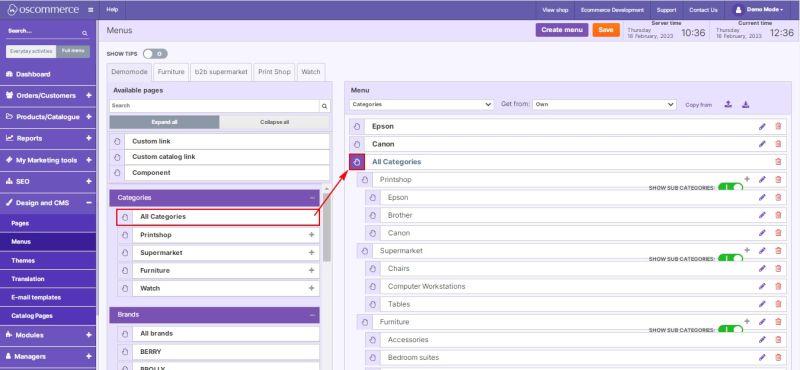
Categories
- Add a single category (or subcategory).
- Or select All categories to create an automatically updated category tree.
Brands
- Add a single brand.
- Or select All brands to create an automatically updated list of all brands.
Pages
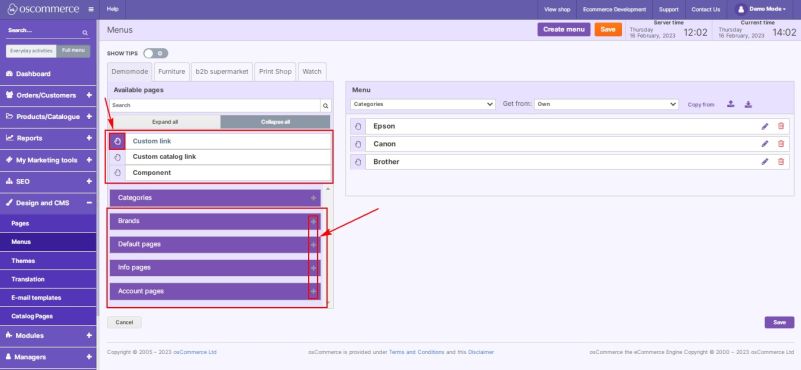
Expand using the + icon and choose:
- Default pages
- Info pages
- Account pages
Other options
- Add Components (from existing ones).
- Add Custom link.
- Add Custom catalog link.
- Drag items with the hand tool to place them.
7) Edit or Delete Menu Items
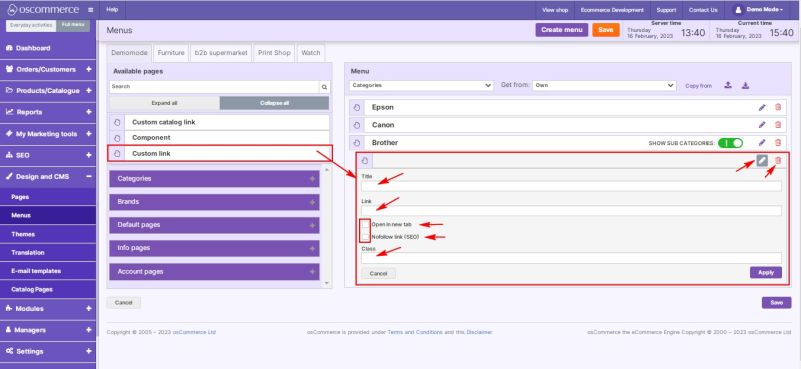
- To edit, click the Pencil icon.
- To delete, click the Trash bin icon.
8) Edit Menu Item Settings
While editing a menu item, you can:
- Change the title.
- Set Open in new tab flag.
- Set Nofollow link for SEO.
- Assign a CSS class.
- Set a link (for Custom Link item type only).