Managing Pages
This manual explains how to manage website pages in the admin area. You will learn how to create, edit, assign, and configure pages, including SEO, design templates, and publication settings.
Watch the video first—it gives you the basics.
Read the manual below for more detailed guidance.
1) Access Pages Management
- Log in to your website’s Admin area.
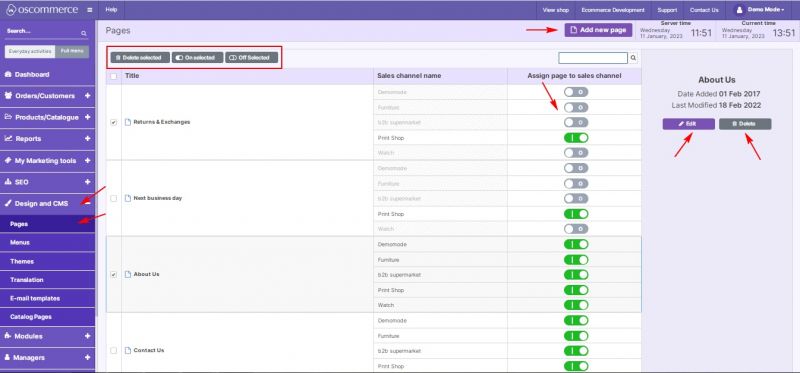
- Navigate to Design and CMS → Pages.
- From this tab, you can:
- Add a new page
- Edit an existing page
- Delete a page
2) Manage Pages from the Listing Page
On the Pages listing page, you can:
- Search for pages by name.
- Enable/disable pages.
- Delete selected pages.
- Assign pages to sales channels directly.
3) Assign Pages to Sales Channels
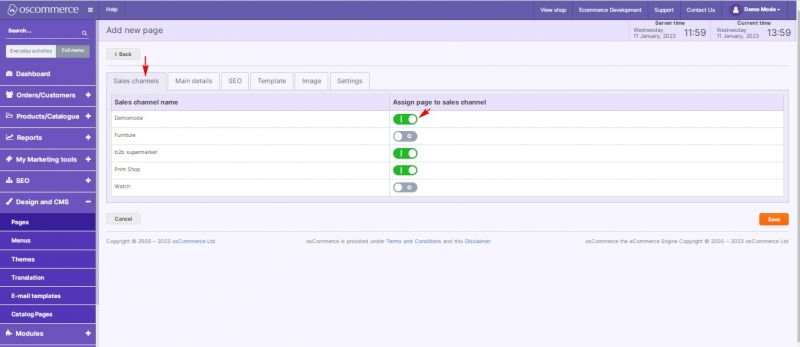
When adding or editing a page:
- Open the Sales Channels tab.
- Select the required sales channels to assign the page.
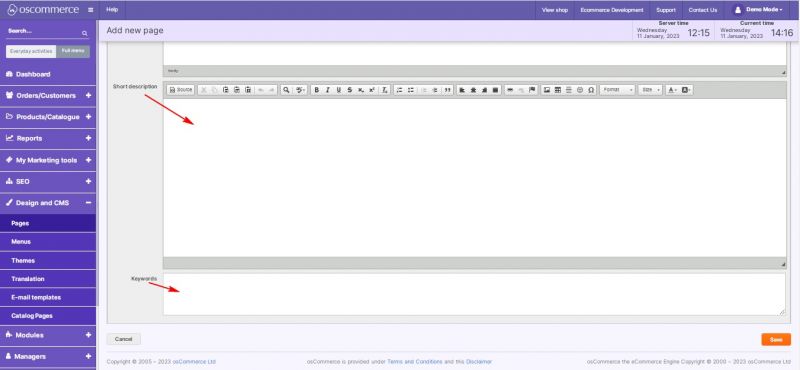
4) Configure Main Details
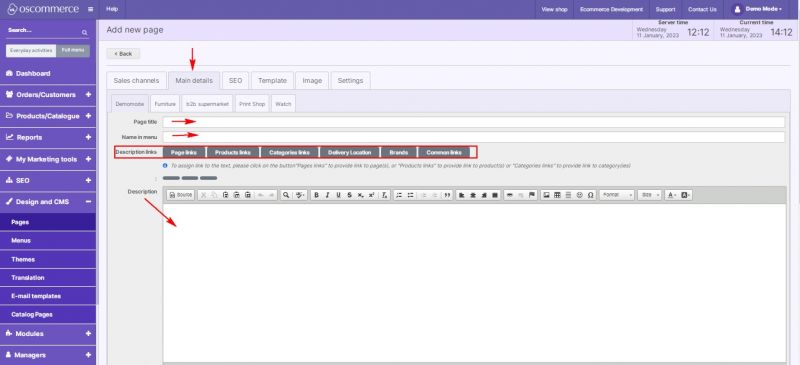
Open the Main Details tab to configure basic page information:
- Set Page title.
- Set Name in the menu.
- Add a Description, which can include:
- Page links
- Product links
- Category links
- Brand links
- Common site links
- Add a Short description.
- Set Keywords.
5) Configure SEO
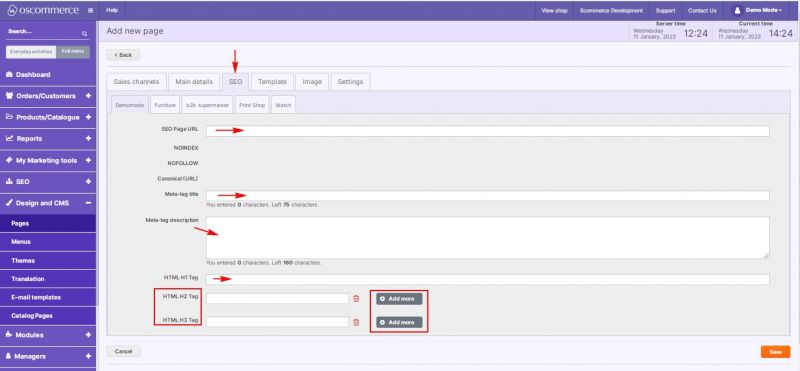
Open the SEO tab to improve page search engine visibility:
- Set SEO page URL.
- Define Page title.
- Enter a META description.
- Add H tags:
- H1 (one per page)
- H2 (multiple allowed)
- H3 (multiple allowed)
6) Configure Template
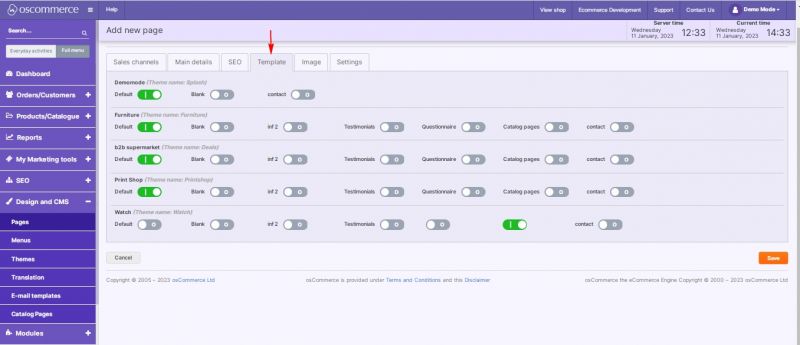
Open the Template tab to:
- Choose a design template for each sales channel.
7) Manage Page Images
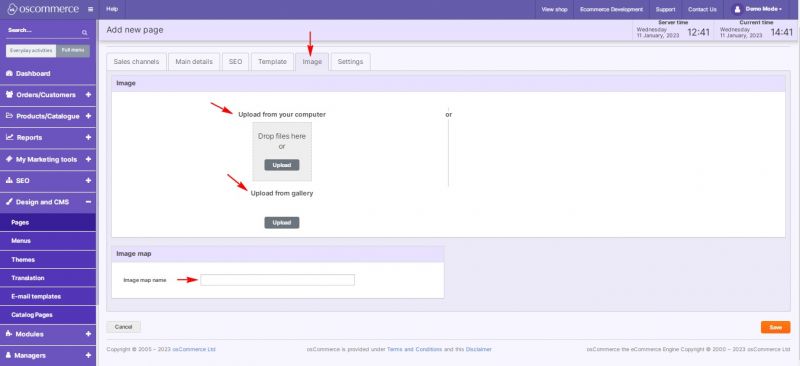
Open the Image tab to:
- Upload images from your computer or gallery.
- Configure an Image Map.
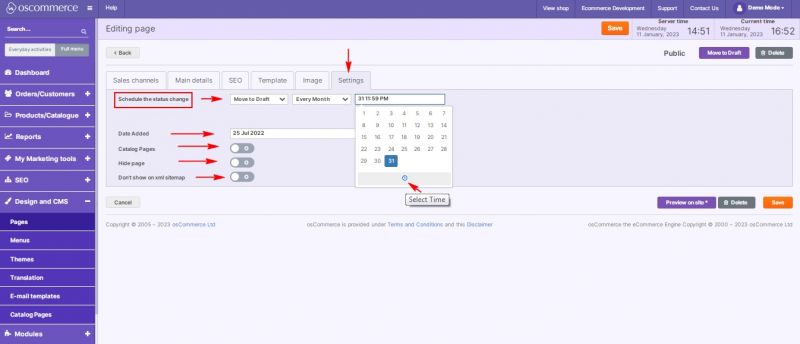
8) Configure Page Settings
Open the Settings tab to manage page visibility and publication options:
- Set Published or Draft status.
- Set Published date or Draft date.
- View or update Date added.
- Use toggles to:
- Enable/disable Catalog Pages.
- Hide page.
- Exclude page from XML sitemap.