Managing Properties
This manual explains how to create and manage product properties in the admin area of your website. Properties allow you to define additional product characteristics that can be used for display, filtering, and search purposes.
Begin with the video to get an introduction.
The manual below explains everything step by step.
1) Accessing Properties
- Log in to the admin area of your website.
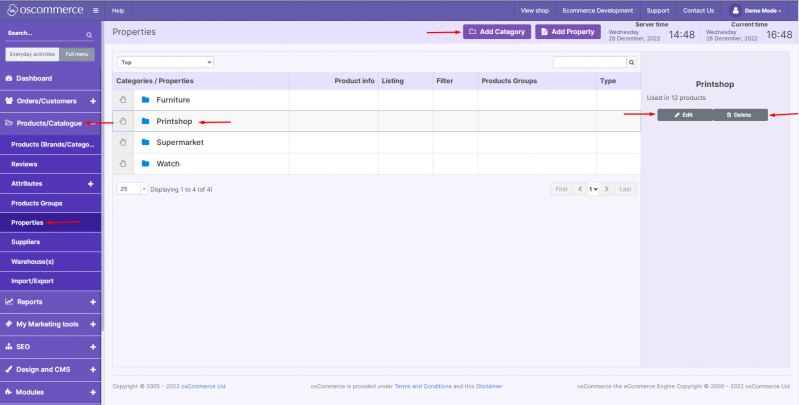
- Navigate to Products/Catalogue → Properties.
- From here, you can:
- Add a new property category.
- Edit or delete an existing property category.
2) Adding or Editing a Property Category
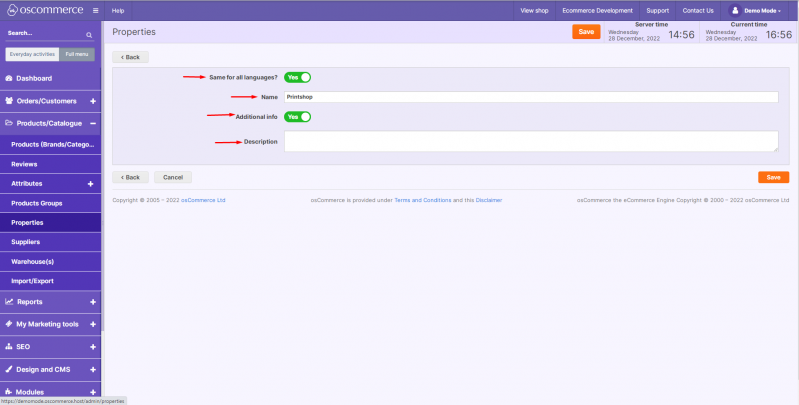
When adding or editing a property category, you can:
- Set the property category name (same for all languages or individual per language).
- Enter an optional property category description.
3) Setting Properties
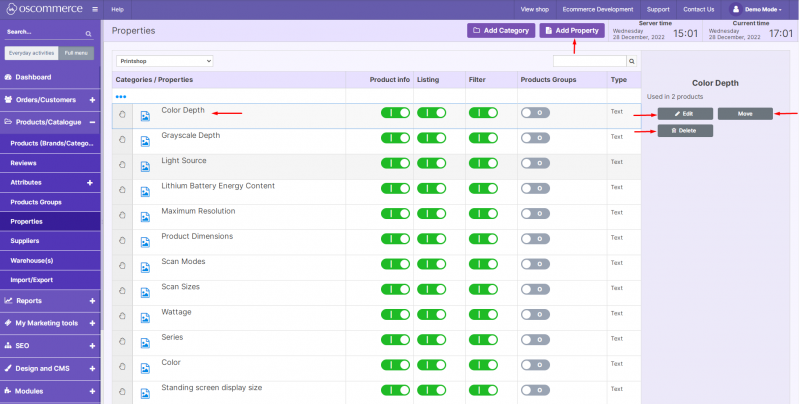
- Double-click on the required property category.
- From this view, you can:
- Insert a new property.
- Edit, delete, or move an existing property to a different property category.
4) Adding or Editing a Property
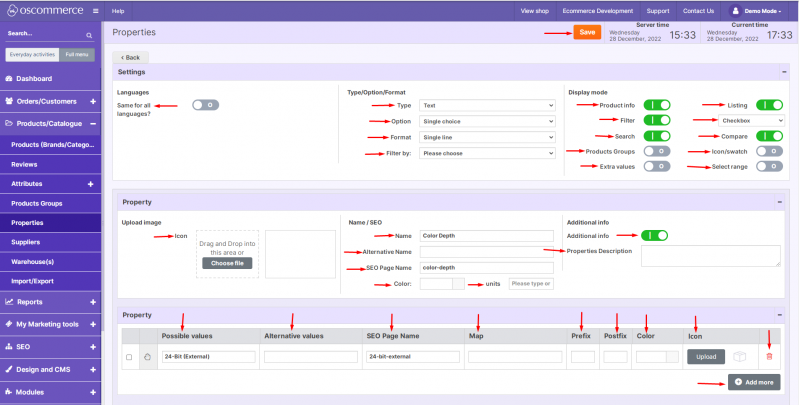
When creating or editing a property, you can configure:
- Language settings — make the property same for all languages or individual per language.
- Property type — text, number, number interval, yes/no, file.
- Choice option — single or multiple.
- Format — single line or multiple lines.
- Filter by — link the property to another property.
- Display mode — choose where the property will appear:
- Product info page
- Filter
- Search
- Listing (checkboxes, radio buttons, pull-down list)
- Compare
- Product groups
- As icon/swatch
- As selectable range
- With extra values
- Additional settings — property icon (upload), name, alias (alternative name), SEO page name (URL extension), color, units, and optional description.
5) Managing Property Values
For each property, you can set property values. These include:
- Property value name.
- Alias (alternative name).
- SEO page name (URL extension).
- Map, prefix, and postfix.
- Color and icon upload.
- Options to save edits, add new values, or delete existing ones.
With properties properly created and managed, you can better organize, filter, and display product characteristics across your store.