Managing Coupons
This manual explains how to create, edit, and manage coupons and gift vouchers, as well as how to generate related reports in the admin area of your website.
Start with the video for a quick introduction to this functionality.
Read the manual below for step-by-step instructions.
1) Accessing Coupon Management
- Access the admin area of your website.
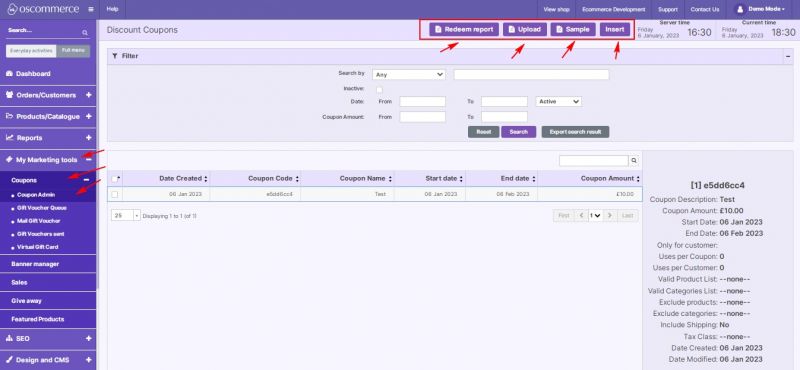
- Navigate to My Marketing Tools → Coupons → Coupon Admin tabs.
Under this tab, you can:
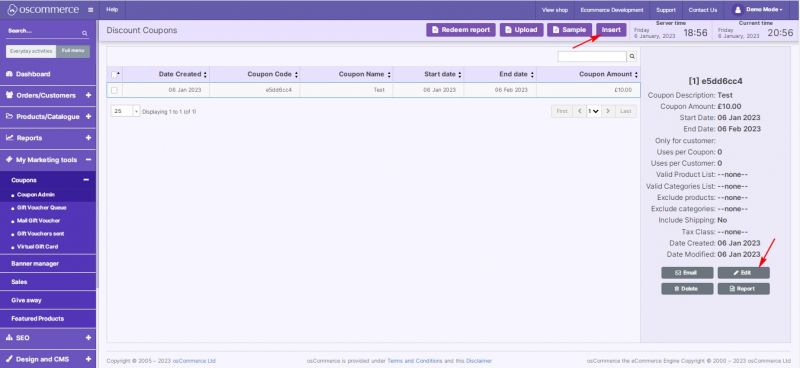
- Insert a new coupon or coupon batch.
- Download a Coupon CSV list sample.
- Upload a Coupon CSV list.
- Generate a Redeemed Coupons report.
2) Searching and Filtering Coupons
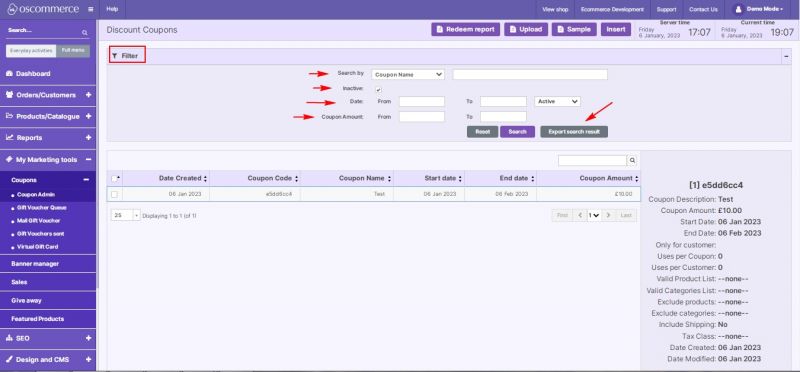
When searching among existing coupons, you can use the following filters:
- Search by: Any, Coupon Code, Coupon Name, Coupon Description.
- Include inactive coupons in your search if necessary.
- Filter by date range and coupon amount range (from–to).
If needed, you can export your search results with one click.
3) Adding or Editing a Coupon
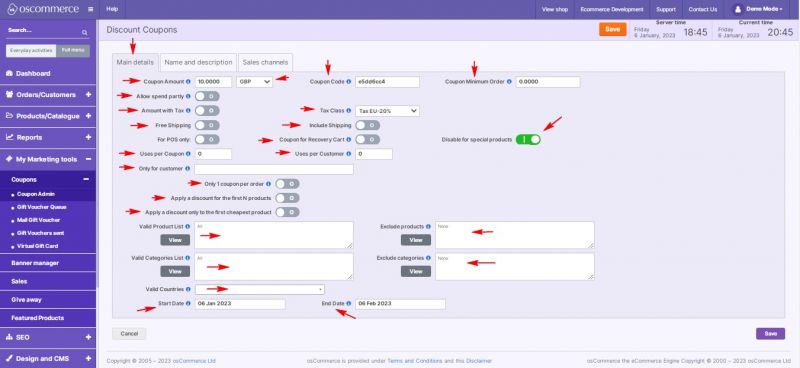
When adding a new coupon or editing an existing one, open the Main Details tab to configure the following options:
1. Coupon value — set in currency or %.
2. Coupon codes — generate random codes or upload specific ones.
3. Minimum order total — define the minimum spend required.
4. Partial spend — allow or disallow partial coupon use.
5. Tax options — apply tax to the discount (if in currency) and choose a tax class.
6. Shipping — include shipping or set it as free.
7. Shopping Cart Recovery — mark the coupon for the recovery system (See Managing Recovery Cart).
8. Special products — disable coupon usage for special products if required.
9. Usage limits — set:
- Number of uses per coupon.
- Number of uses per customer per coupon.
- Availability for specific customers (by email).
10. Order limits — enable one coupon per order.
11. Product applicability — apply the discount to:
- The first N products, or
- The cheapest product only.
12. Restrictions — create lists of:
- Product IDs,
- Categories,
- Countries where the coupon can be used.
13. Validity period — specify start and end dates.
4) Setting Coupon Name and Description
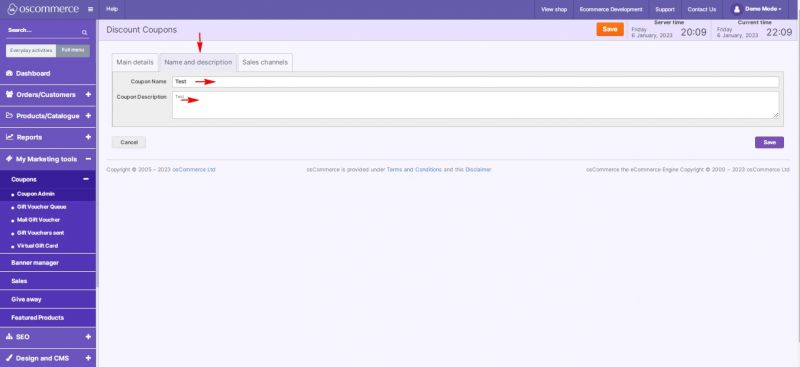
Under the Name and Description tab, define the coupon name and description.
5) Linking Coupons to Sales Channels
Under the Sales Channels tab, link the coupon to one or several sales channels.
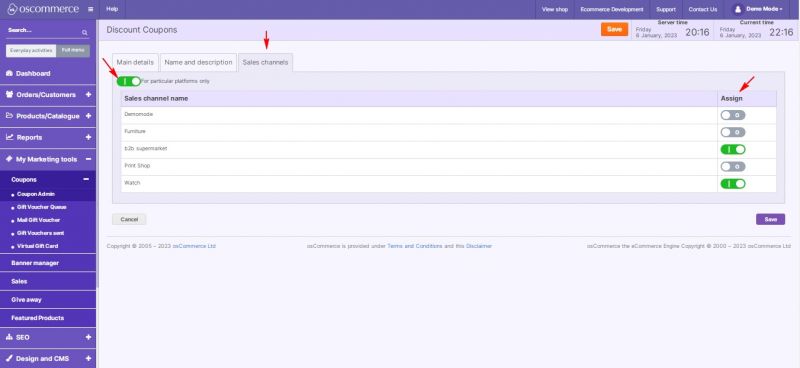
After adding or updating coupons or vouchers, save all changes to confirm your settings.
6) Managing Gift Voucher Queue
To view detailed information about gift voucher usage:
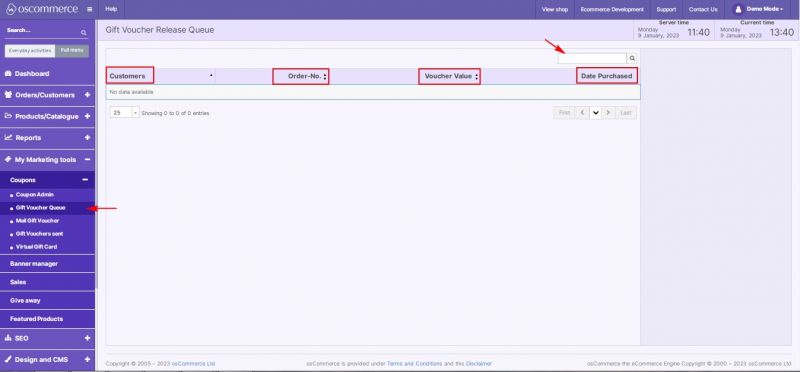
- Go to the Gift Voucher Queue tab.
- Review the automatically generated report table, which includes:
- Customers – customer details.
- Order No. – order number where the voucher was used.
- Voucher Value – voucher amount.
- Date Purchased – date when the voucher was applied.
Use the Quick Search field above the table to find specific records.
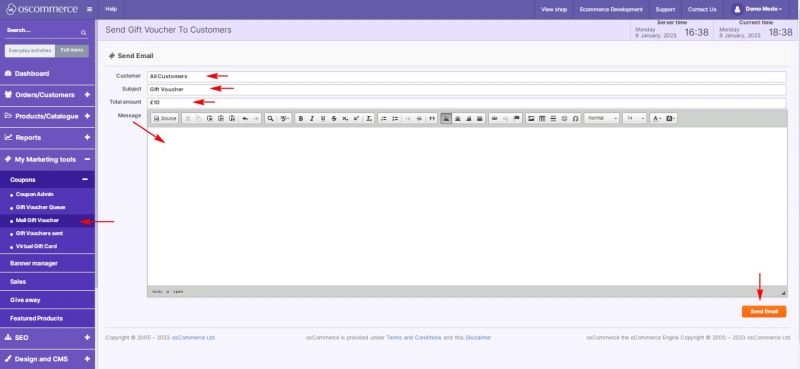
7) Sending Gift Vouchers by Email
- Move to the Mail Gift Voucher tab.
- Fill in the corresponding fields to create and send a gift voucher email to your customers.
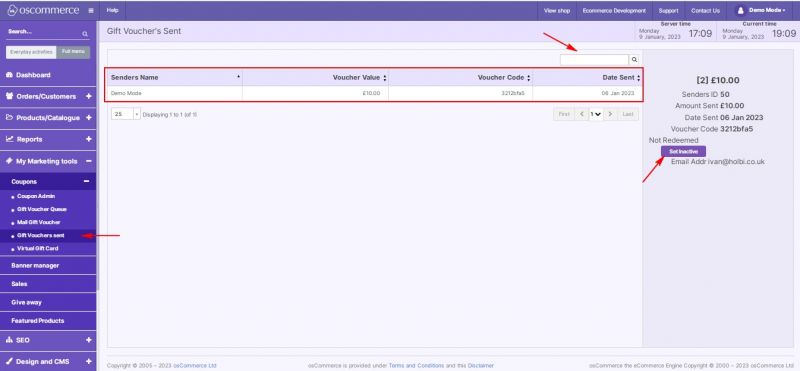
8) Viewing Sent Gift Vouchers
To check previously sent vouchers:
- Open the Gift Vouchers Sent tab.
- Review the system-generated report table with columns:
- Sender’s Name
- Voucher Value
- Voucher Code
- Date Sent
You can set a voucher inactive (if it is not redeemed).
Use the Quick Search field to find specific vouchers.